



Introducing Dacast MCP Live Stream Server for AI Live Streaming

Live streaming teams are under pressure to do more with fewer hands on the mixer. Scripts, custom webhooks, and one-off dashboards keep events alive, but they’re fragile, hard to maintain, and impossible to scale globally.
Dacast MCP Live Stream Server changes that by connecting AI tools like ChatGPT, Claude, and Cursor directly to Dacast’s live streaming APIs via the open Model Context Protocol (MCP). With simple natural-language prompts, you can provision channels, manage playlists, update thumbnails, and orchestrate simulcasts without touching a control panel. In this article, we’ll show how MCP works, what you can automate on day one, and how Dacast plans to expand MCP-powered workflows for broadcasters and enterprises.
TL;DR: Dacast MCP Live Stream Server connects MCP-capable AI clients (ChatGPT, Claude, Cursor) to Dacast. On day one, the MCP Live Streaming Server platform enables teams to create and update live streams, activate streams, configure simulcast destinations, toggle recording and DVR, manage playlists, and upload thumbnails — all via natural-language prompts.
Table of Contents
- What Is MCP (Model Context Protocol) and Why Does It Matters for Live Streaming?
- Meet Dacast MCP Live Stream Server
- What You Can Do on Day One
- Five Real-World Use Cases (Government, Town Hall, EdTech, Events, Sports)
- Implementation Overview (for Engineers)
- Getting Started with Dacast MCP Live Stream Server
- FAQs
- Conclusion & Next Steps
What Is MCP (Model Context Protocol) and Why Does It Matter for Live Streaming?
MCP is an open standard that defines how AI applications connect to tools, data sources, and workflows. It’s often described as the “USB-C for AI”: a single, universal interface that can plug AI models into the myriad services they need to control, monitor, or analyze.
In practice, MCP is how AI clients connect to “remote MCP servers” over the internet. Once you add a server in ChatGPT/Claude/Cursor, the client can discover the server’s tools and call them safely using structured requests — while you keep control through permissions and auditing.
Whether it’s triggering a scene change in a live production, translating captions in real time, or updating a content management system, MCP ensures every component communicates seamlessly without bespoke scripts or fragile APIs.
MCP is emerging alongside a broader industry push toward standardized, interoperable agentic AI systems. Initiatives such as the Linux Foundation’s Agentic AI Foundation highlight the growing demand for open frameworks that allow AI agents to safely interact with real-world tools and infrastructure – an approach that directly applies to live streaming and broadcast operations.
Core Pieces of MCP
MCP is built around a few essential elements that make it both flexible and scalable:
- MCP (Model Context Protocol) Clients: These are the AI apps or “agents” that want to perform tasks. For MCP Live Streaming Server, this might be an AI-driven assistant deciding when to switch camera angles or trigger ads.
- MCP (Model Context Protocol) Servers: These expose capabilities to the clients. They act as the gatekeepers, providing access to tools like encoders, OBS, schedulers, or VOD platforms.
- JSON-RPC Communication: MCP uses a standardized remote procedure call protocol, which allows clients to send instructions and receive structured responses. This ensures that commands are machine-readable and predictable.
- Capability Discovery: Rather than guessing what a server can do, clients can query its capabilities, confirming which actions are available and what parameters they require. This eliminates trial-and-error and makes automated broadcasting safer.
Why Does It Matter to Streaming?
For live streaming operations, MCP replaces one-off, brittle scripts with a consistent, orchestrated control layer. Imagine having dozens of encoders, schedulers, captioning services, and analytics tools: without MCP automated streaming, these workflows often require custom code for every combination, which is brittle and time-consuming. With MCP, the AI live streaming automation means:
- Managing scene transitions across multiple encoders
- Scheduling events and pushing metadata updates to VOD libraries
- Triggering alerts or backups when streams fail
- Integrating monitoring and quality control tools automatically
In short, MCP provides a unified language for live stream management automation, which reduces human error and accelerates workflow updates.
Security considerations
Any system that allows AI clients to control production tools needs robust trust boundaries and authentication strategies. MCP itself does not enforce enterprise auth; that responsibility falls to the server implementation. Keep in mind these key considerations:
- Authentication & Authorization: Use RBAC, signed requests, and least-privilege tokens to prevent misuse.
- Prompt-injection Risks: If an AI model can generate commands dynamically, it could be tricked into unintended actions. Validate and sanitize all inputs.
- Auditability: Every action should be logged and traceable, enabling rollback and forensic analysis in case of errors or malicious activity.
- Rate Limiting & Execution Approval: Protect critical live workflows from accidental or excessive commands.
These safeguards show how MCP automates live streaming workflows without compromising enterprise security or compliance, which is especially critical for broadcasters handling live events and monetized content.
Meet Dacast MCP Live Stream Server
Dacast is introducing its own MCP Live Stream server, designed to bring AI-driven automation directly into live streaming workflows and support AI orchestration for video delivery across the end-to-end streaming pipeline.
By standardizing how AI tools for live broadcasting in 2026 interact with the production ones, Dacast MCP Live Stream Server aims to reduce manual complexity, speed up operational changes, and give broadcasters more control over their content pipelines.
While the platform is still evolving, this first release focuses on essential live-event control: creating and updating streams, managing simulcast destinations, toggling recording and DVR, managing playlists, uploading thumbnails, and logging every action for traceability.
What Dacast MCP Live Stream Server Will Expose
Dacast MCP Live Stream Server video automation is planned to offer a broad range of operations that cover the full spectrum of live streaming management:
- Streams (create, update, list, get — with scheduling)
- Create streams with sensible defaults (title/description).
- Update stream metadata and schedules with partial updates (and validate timezone).
- List streams with filters (status/date/query) and pagination.
- Get a single stream record, ingest summary, and playback references.
- Google analytics integration
- Password protection
- Simulcast basics (add/start/stop/status + destination types)
- Add a simulcast destination (e.g., YouTube/Twitch/other supported providers).
- Start and stop simulcast jobs without changing the primary stream.
- Check simulcast status and list available destination types your account can use.
- Recording / Archive control (toggle + list)
- Toggle recording ON/OFF.
- List available recordings with key metadata (state, duration, size).
- DVR (toggle)
- Toggle recording ON/OFF.
- Playlists (create, update, list, get + set content order)
- Create and update playlists with partial updates.
- Add channels to playlists
- Retrieve playlists and their items; set playlist content order (replace or patch).
- Thumbnails and Splash screens (create)
- Create thumbnails or splash screens and return a ID / URL suitable for assignment.
- Action audit logs (always on)
- Log every MCP action (success/failure) with clear traceability (who/what triggered it, what changed, and the outcome), while redacting sensitive parameters as needed.
Together, these intelligent live video automation capabilities give broadcasters a single control plane for their live streaming operations, reducing the friction of switching between multiple tools and dashboards.
What You Can Do on Day One
Channel & Playlist Management via Prompts (map to Channel/Playlist APIs).
With MCP enabled, AI clients can safely create, query, and manage live channels and playlists using structured tool calls behind the scenes.
Typical actions include:
- Creating or updating live channels
- Retrieving stream keys and ingest settings
- Listing active or inactive channels
- Creating and managing playlists for scheduled or looped playback
Example prompts:
- “Create a new live channel named Quarterly Town Hall and return the ingest details.”
- “List all my live channels and show which ones are currently streaming.”
- “Create a playlist called Event Break Content and add these three VOD assets.”
Thumbnails & Images (Images API).
MCP automates visual asset management workflows, allowing AI tools to update thumbnails and splash screens using public HTTP(S) image URLs, removing the need for manual file uploads through the UI.
Typical actions include:
- Uploading or assigning thumbnails to live channels or VOD assets
- Updating preview images for playlists or replays
Example prompts:
- “Update the thumbnail for asset asset_12345 using this image URL.”
- “Show me which live channels are missing a thumbnail.”
Simulcast Control (Simulcast API).
Simulcasting is another area where MCP provides immediate value. AI clients can dynamically manage simulcast destinations (add, remove, or review) through standardized commands during active streams, allowing real-time simulcast configuration without affecting the primary stream.
Typical actions include:
- Enabling simulcast destinations (e.g., YouTube, Facebook, LinkedIn)
- Disabling a destination without stopping the main stream
- Listing active simulcast targets for a channel
Example prompts:
- “Enable simulcast to YouTube and LinkedIn for channel channel_67890.”
- “Disable Facebook simulcast for this channel but keep the stream live.”
Quick Test Prompts (End-to-End)
These prompts are ideal for validating your MCP setup right after configuration:
- “List my live channels.”
- “Create a test channel called MCP Demo.”
- “Show ingest details for channel MCP Demo.”
- “Create a playlist named Demo Playlist.”
- “Assign this image as the thumbnail for asset asset_12345.”
- “Enable simulcast to YouTube for channel MCP Demo.”
Note: Exact tool names, parameters, and outputs depend on the MCP capabilities exposed by Dacast. Always refer to the official documentation for the latest supported actions:
These day-one capabilities demonstrate how MCP turns common operational tasks—normally handled through dashboards or scripts—into safe, repeatable, AI-driven workflows that teams can build on over time.
Five Real-World Use Cases (Government, Town Hall, EdTech, Events, Sports)
Model Context Protocol (MCP) delivers the most value when applied to real production workflows. These five mini-playbooks show how Dacast’s MCP-based automation streamlines live streaming across industries-using AI to handle repetitive operations so teams can focus on content and audience engagement.
1. Corporate Town Hall
Objective: Deliver polished internal broadcasts with minimal operator overhead.
- Create the stream
- Add simulcast destinations for public platforms (if used)
- Toggle recording ON and verify after the event via “list recordings”
- Toggle DVR on
- Publish consistent playlists and thumbnails for replays and internal pages
- Review audit logs for a clean post-event report
2. Government / Public Sector Briefings & Public Meetings
Objective: Deliver compliant, repeatable live broadcasts (council meetings, press briefings, emergency updates) with clear auditability and minimal operator overhead.
- Create the stream
- Upload a standardized thumbnail
- Add official simulcast destinations (e.g., YouTube, Facebook)
- Activate the stream at the scheduled time and confirm ingest details for the encoder
- Toggle recording ON to ensure the session is archived
- Review action audit logs after the event to document what actions occurred and when
3. Education / eLearning
Objective: Create accessible, interactive learning experiences at scale.
- Duplicate a stream template via prompts (title/date/timezone changes)
- Ensure recording is ON for session capture
- Keep course playlists organized and thumbnails consistent
4. Conferences & Events
Objective: Run multi-session events with seamless transitions and failover.
- Create multiple streams quickly (track A/B/C)
- Activate sessions and keep simulcast destinations consistent
- Maintain playlists per track and update thumbnails per session
5. Ticketed Sports Stream
Objective: Automate multi-camera switching, ads, and post-game delivery.
- Create and schedule streams for each match
- Add and start simulcast destinations per event
- Toggle recording ON and validate recording output post-match
- Use playlists to package a series of events or replays
- Use audit logs for operational traceability
Across all five scenarios, MCP acts as the connective layer that aligns encoders, AI assistants, and delivery systems under one protocol – reducing errors, accelerating workflows, and enabling more responsive, scalable live streaming operations.
Implementation Overview (for Engineers)
Behind every streamlined, AI-driven broadcast lies a well-structured implementation.
The Dacast MCP Server uses the Model Context Protocol (MCP) to expose Dacast API functionality through a standardized tool interface. The complete source code is available on GitHub.
Tool Manifest Structure
An MCP server describes what it can do through tool manifests—structured JSON schemas that expose specific capabilities to AI clients.
Each tool defines:
- Required and optional parameters
- Parameter types and constraints
- Default values
- Descriptions for AI interpretation
The Dacast MCP Server automatically generates these schemas from Go struct definitions using JSON Schema reflection, ensuring type safety and documentation accuracy.
JSON Example
{
“$schema”: “http://json-schema.org/draft-07/schema#”,
“type”: “object”,
“properties”: {
“title”: {
“type”: “string”,
“description”: “Title of the channel (stream).”
},
“description”: {
“type”: “string”,
“description”: “Description of the channel (stream).”
},
“region”: {
“type”: “string”,
“description”: “Region where the channel (stream) will be hosted. If you have information about the user’s location, you should select the closest region. If not, you should ask the user about their region.”,
“enum”: [“north_america”, “europe”, “asia_pacific”],
“default”: “north_america”
},
“online”: {
“type”: “boolean”,
“description”: “Indicates if the channel (stream) should be enabled (online) or disabled (offline) upon creation.”,
“default”: true
},
“live_recording_enabled”: {
“type”: “boolean”,
“description”: “Indicates if live recording enabled for the channel (stream) upon creation.”,
“default”: false
},
“live_dvr_enabled”: {
“type”: “boolean”,
“description”: “Indicates if live DVR is enabled for the channel (stream) upon creation. Cannot be enabled without recording”,
“default”: false
},
“google_analytics_code”: {
“type”: “string”,
“description”: “Google Analytics tracking code to associate with the channel (stream). If not set, tracking will be disabled.”
},
“password”: {
“type”: “string”,
“description”: “Password to protect the channel (stream). If not set, the channel will not be password protected.”
},
“channel_type”: {
“type”: “string”,
“description”: “Type of the channel (stream). Transmux – just passthrough video/audio data. fhd-transcode – transcode video data and create additional ABR variants, If ABR is enabled and the stream has fewer than 5 viewers, an additional fee will be charged. HLS – Instead of rtmp, channel provides a direct endpoint for HLS publishing.”,
“enum”: [“transmux”, “fhd-transcode”, “hls”],
“default”: “transmux”
}
},
“required”: [“title”],
“additionalProperties”: true
}
This manifest is automatically generated from the `CreateChannelRequest` struct in`pkg/tools/channel/create_channel.go` see the source code, ensuring the schema always matches the implementation.
Authentication
The server uses API key authentication via the `DACAST_API_TOKEN` environment variable. The token is passed in the `X-Api-Key` header for all Dacast API requests.
Tool Registration
All tools are registered in `pkg/tools/tools.go` and grouped by domain:
- Channels (4 tools)
- Playlists (6 tools)
- Images (2 tools)
- Simulcast (3 tools)
Each tool follows a consistent pattern using the `DefaultDacastProxyHandler` which:
- Validates input parameters
- Transforms requests to Dacast API format
- Handles errors and logging
- Returns structured responses
Getting Started with Dacast MCP Live Stream Server
Dacast’s MCP server lets MCP-capable clients (like Cursor, ChatGPT, and Claude) connect to Dacast so you can query and manage things like channels and playlists via natural-language prompts. Follow the official setup guide here: Dacast KB – Configuring MCP Server.
What you need before you start
- A Dacast API key (you’ll paste this into the MCP server URL / config).
- Access to the Dacast MCP Live Stream Server setup doc.
How to set up MCP in Cursor
- Open Settings (CTRL+SHIFT+J on Windows).
- Click Tools and MCP.
- Click New MCP Server.
- Cursor will open mcp.json — paste the JSON from the Dacast doc (don’t forget your API key).
5. Save and restart Cursor.
6. Go back to Settings → Tools and MCP and confirm MCP is enabled (green).
7. In any chat, you can now ask Dacast-related questions/actions (e.g., channels/playlists).
How to set up MCP in ChatGPT (Web)
- Open Settings.
- Click Apps and Connections.
- Click Advanced Settings.
- Enable Developer mode.
- Go back; near Enabled connectors, click Create.
- Enter a connection name (e.g., Dacast).
- In MCP Server URL, enter:
https://mcp.dacast.com/m/?token_key=Your_API_Key - For Authentication, select “No authentication” in ChatGPT’s connector settings (the Dacast API key is passed in the MCP Server URL token parameter). Treat the URL like a secret: don’t share screenshots or documents containing your token.
- Click Create.
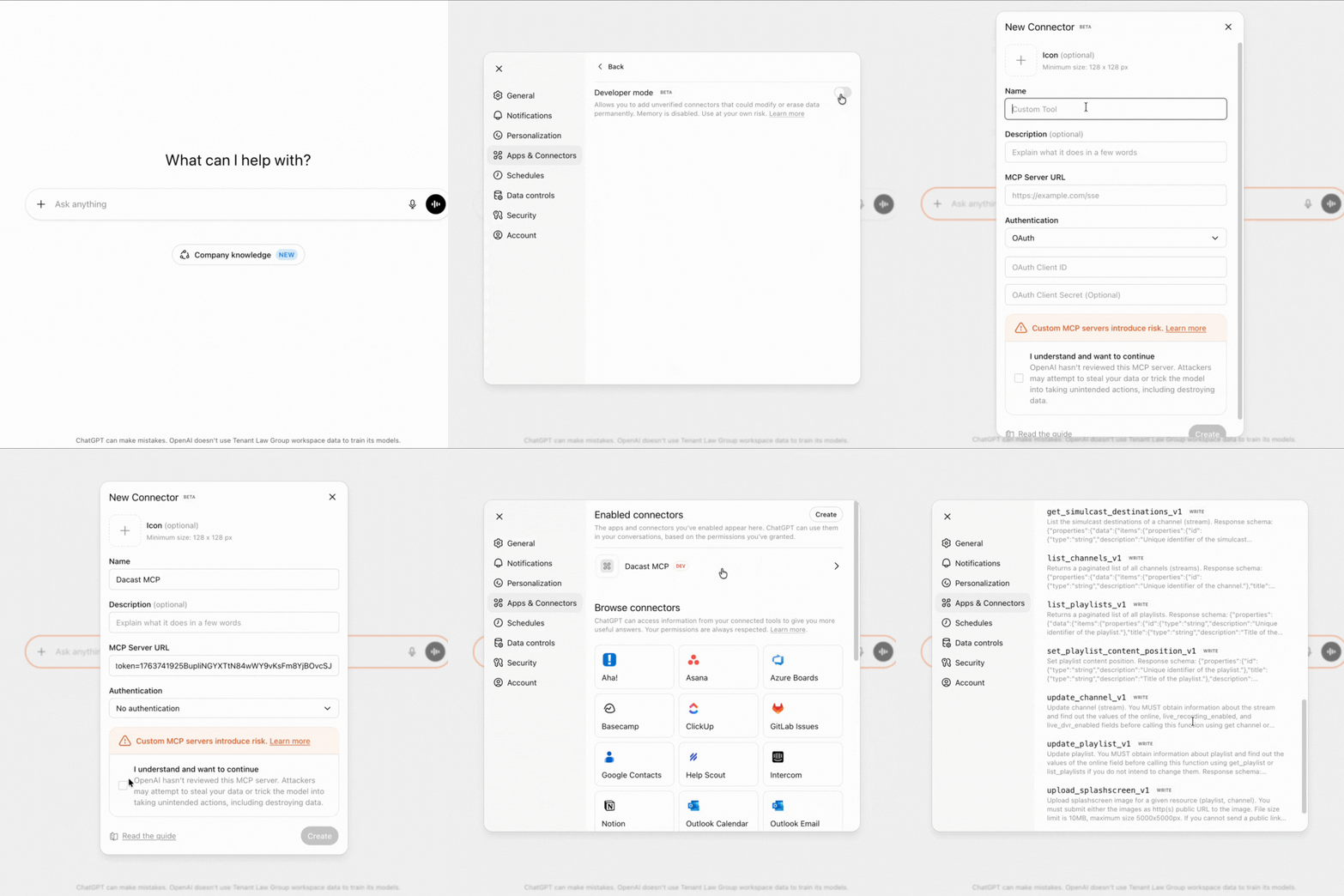
How to set up MCP in Claude
- Open Settings.
- Click Connectors.
- Click Add custom connector.
- Enter a name (e.g., Dacast).
- In Remote MCP Server URL, enter:
https://mcp.dacast.com/m/?token=Your_API_Key - Click Add.
Quick “first prompts” to test the connection
- “List my live channels.”
- “Show details for channel {channel_id}.”
- “List playlists and their items.”
FAQs
What is the Dacast MCP Live Stream Server?
Dacast MCP Live Stream Server is a remote MCP server that connects MCP-capable AI clients (like ChatGPT, Claude, and Cursor) to Dacast’s live-event operations, so you can create and manage streams, activate go-live (including countdown), control simulcast destinations, toggle recording and DVR, manage playlists, and upload thumbnails and splash screen images, using natural-language prompts.
What can I automate on day one with Dacast MCP Live Stream Server?
Day one includes: creating/updating/listing/getting streams, activating streams, adding/starting/stopping/checking simulcast destinations, toggling recording and listing recordings, toggling DVR, creating/updating/listing/getting playlists and setting playlist content order, uploading thumbnails, and reviewing action audit logs.
Does Dacast MCP Live Stream Server control OBS scenes directly?
Not by itself. Dacast MCP Live Stream Server exposes Dacast actions. If you want AI to control OBS (scene switching, sources, etc.), you typically connect a separate OBS MCP server (or another OBS integration) and orchestrate both from the same AI client.
How do I connect Dacast MCP Live Stream Server to ChatGPT, Claude, or Cursor?
In ChatGPT (Web), enable Developer mode, then add a new MCP connection and paste your Dacast MCP Server URL containing your API token. Follow the official Dacast setup steps to ensure the connector is configured correctly.
Claude supports connecting to remote MCP servers through its connector settings, and Cursor uses an MCP configuration (mcp.json / MCP Tools) to register servers. Use the Dacast setup guide and your client’s MCP connection flow to add the server.
Is MCP secure by default?
MCP is a protocol; security depends on the server implementation and how you manage credentials. Use least-privilege access, protect tokens, and follow your org’s key rotation and approval practices. (MCP documentation also covers authorization approaches for servers.)
Are there any actions that are intentionally not available through Dacast MCP?
Yes. For safety, destructive “delete” operations are not available via Dacast MCP.
How can I broadcast using AI and Dacast MCP Live Stream Server?
Connect an MCP-capable AI client (like ChatGPT, Claude, or Cursor) to Dacast MCP Live Streaming Server, then use prompts to run your live-event workflow end to end. A typical flow looks like:
- Create the stream: “Create a stream called ‘Monthly Update’ and return ingest details.”
- Prepare distribution: “Add simulcast destinations (e.g., YouTube) and confirm destination status.”
- Enable recording: “Turn recording ON for this stream.”
- Go live: “Activate the stream now and confirm it’s active.”
- Post-event: “List recordings for this stream and add the replay to the ‘Company Updates’ playlist.”
- Governance: “Show the audit log for actions taken during this event.”
Dacast MCP Live Stream Server handles the Dacast-side operations (streams, activation, simulcast, recording, playlists, thumbnails, and audit logs). If you also want AI to control production tools like OBS (scene switching), connect an OBS MCP server alongside Dacast MCP and orchestrate both from the same AI client.
How do audit logs work?
All MCP actions (stream activation, simulcast changes, recording toggles) are logged in the Dacast platform. View audit logs in the Dacast dashboard or admin panel (extended version) for operational traceability and post-event review.
Can non-technical staff use it?
Yes—if your organization provides approved prompt templates and operating procedures. Most teams start with a small set of “approved actions” (create stream, activate, start simulcast, toggle recording) and expand as operators get comfortable.
Do I need to write code to use Dacast MCP Live Stream Server?
Not necessarily. Many workflows can be executed directly from an AI client via natural-language prompts. Engineering teams may still choose to standardize prompt templates, naming conventions, and checklists for repeatability.
Which AI clients are compatible with MCP?
Any client that supports MCP remote servers can work. Common examples include ChatGPT, Claude, and Cursor, but compatibility ultimately depends on the client’s MCP support and your connection setup.
Where can I find the official setup instructions?
Use the Dacast Knowledge Base setup guide for the latest steps and the correct MCP Server URL format for each client.
Can I bring my own model or provider?
Yes, MCP is an open protocol, meaning it’s compatible with multiple model providers. Users can connect their own AI hosts, whether it’s OpenAI, Anthropic, or an on-prem model, while still benefiting from Dacast’s standardized control surface and permissions model.
Conclusion & Next Steps
MCP represents a turning point for how live streaming operations connect AI tools to production workflows. By standardizing communication between models, encoders, and scheduling systems, the upcoming Dacast MCP Live Stream Server brings automation, reliability, and governance into one consistent framework.
Instead of maintaining one-off scripts or manual checklists, broadcasters can orchestrate complex live events, from scene changes to redundancy failovers, with traceable, policy-driven precision. For enterprises, this means faster iteration, fewer errors, and more transparent compliance across distributed teams.
Dacast’s MCP-powered ecosystem aims to reduce operational toil while increasing velocity and control. As the streaming landscape continues to evolve, this approach helps teams stay agile, secure, and ready for the next wave of AI-enhanced production.
Want early access to Dacast MCP Live Streaming Server? Create a Free Trial account and book a demo to get onboarding steps, sample prompts, and updates as new MCP tools roll out.
REFERENCES
- Model Context Protocol (MCP) – Official Documentation : https://modelcontextprotocol.io/docs/getting-started/intro
- Technical Specification: https://modelcontextprotocol.io/specification/
- Anthropic’s “Introducing the Model Context Protocol” & Agentic AI Foundation (Linux Foundation): https://www.linuxfoundation.org/press/linux-foundation-announces-the-formation-of-the-agentic-ai-foundation
- OpenAI & Claude documentation: “Building MCP servers for ChatGPT and API integrations” / connectors guide.
To stay up-to-date with the latest news in the world of video streaming and hosting, join our LinkedIn community.
