



How To Host MP4 Videos On Your Website

Looking to embed a high-quality MP4 video on your website that works across all devices? This guide will show you how to host and publish MP4 videos using Dacast, optimize them for fast loading, and securely share them with your audience.
MP4 is the industry standard for video hosting in 2026, offering broad compatibility across all modern browsers, devices, and platforms. MP4 ensures your videos play smoothly without the need for additional plugins, whether you’re running a business website or sharing content with a global audience.
At Dacast, we recommend MP4 video hosting via your Dacast account. With MP4 hosting, you can offer your viewers an almost universally supported file format across all devices.
Table of Contents:
- What is MP4 and Why It’s Ideal in 2026
- Popular Use Cases for MP4 Hosting in 2026
- How To Host MP4 Videos via Dacast
- How to Embed MP4 Videos Manually Using HTML5
- MP4 Optimization for Web Playback
- Secure Your MP4 Videos
- How To Convert a Video File to MP4
- SEO and Analytics for Hosted Videos
- FAQs
- Conclusion
What is MP4 and Why It’s Ideal in 2026
MP4 (MPEG-4 Part 14) is a versatile container format that supports multiple data streams—including video, audio, and subtitles—in a single file. It typically uses:
- H.264 for video encoding
- AAC for audio encoding
- MPEG-4 Timed Text for subtitles
This combination delivers high-quality video with efficient compression, resulting in smaller file sizes without sacrificing clarity.
For Dacast videos, the optimal file format is MP4 using these specific data streams:
- H.264 video codec
- AAC audio codec
Using MP4 video hosting via Dacast guarantees broad accessibility, high-quality playback, and hassle-free video management for your website. Below, you’ll find the reasons Dacast recommends MP$ video hosting:
- Universal Compatibility: MP4 is supported across all major operating systems, browsers, and mobile devices, ensuring your audience can access your videos without format issues.
- No Manual Transcoding Needed: Dacast’s Auto Encode feature automatically converts your uploaded MP4 files into multiple formats for optimal playback on any device.
- Efficient Streaming: MP4 enables smooth streaming with low bandwidth requirements, making it ideal for web and social media sharing.
- Advanced Features: MP4 supports interactive content like subtitles and menus, enhancing the viewer experience.
Popular Use Cases for MP4 Hosting in 2026
Businesses increasingly rely on MP4 video hosting to deliver high-quality, accessible video content that drives engagement and conversions. Here are some of the most common real-world applications:
- Online Courses: Educational platforms use MP4 hosting to deliver on-demand video lessons with smooth playback across devices, ensuring students can learn anytime, anywhere.
- E-commerce Product Demos: Retailers embed MP4 videos on product pages to showcase features and usage, helping customers make informed buying decisions.
- SaaS Feature Walkthroughs: Software companies host MP4 videos to demonstrate product functionalities, onboarding users with clear, step-by-step tutorials.
- Video Sales Pages: Marketing teams leverage MP4 hosting to create compelling sales videos that increase conversion rates through engaging storytelling and visuals.
Using MP4 hosting via Dacast simplifies this process by enabling easy upload of MP4 video online, automatic transcoding, and providing responsive video embed for mobile. This ensures your videos are optimized for all devices and browsers, enhancing user experience and maximizing reach.
How To Host MP4 Videos via Dacast
Dacast simplifies MP4 video hosting on your website with its optimized Dacast MP4 uploader accessible directly from your browser. The platform supports multiple file types but recommends MP4 for its superior device compatibility.
Step-by-Step Upload Process
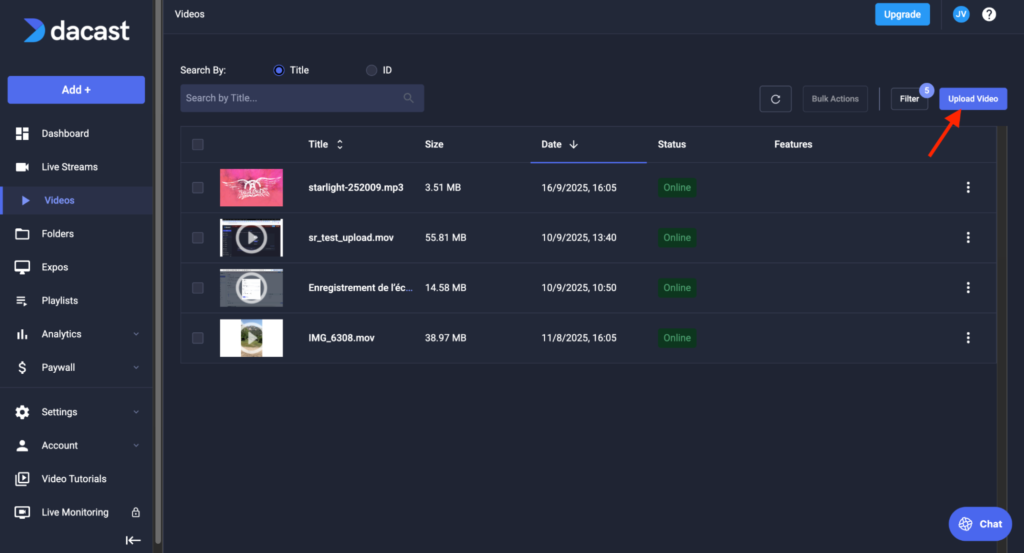
1.Sign in to your Dacast account and on the dashboard, under the “Videos” Tab, click the “ ”Upload video” button to open the Uploader.
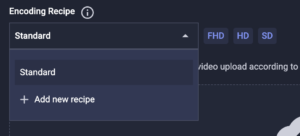
2. Make sure to select the correct encoding recipe or to create a new one.
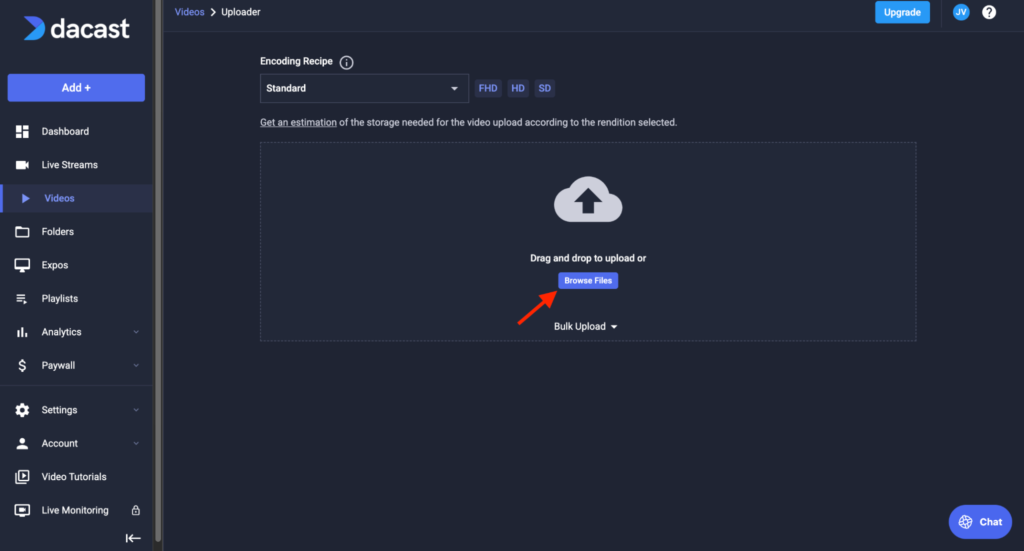
3. Click “Browse Files”, choose your MP4 (or other supported formats like MOV, AVI, FLV, MPG, MLV) from your computer.
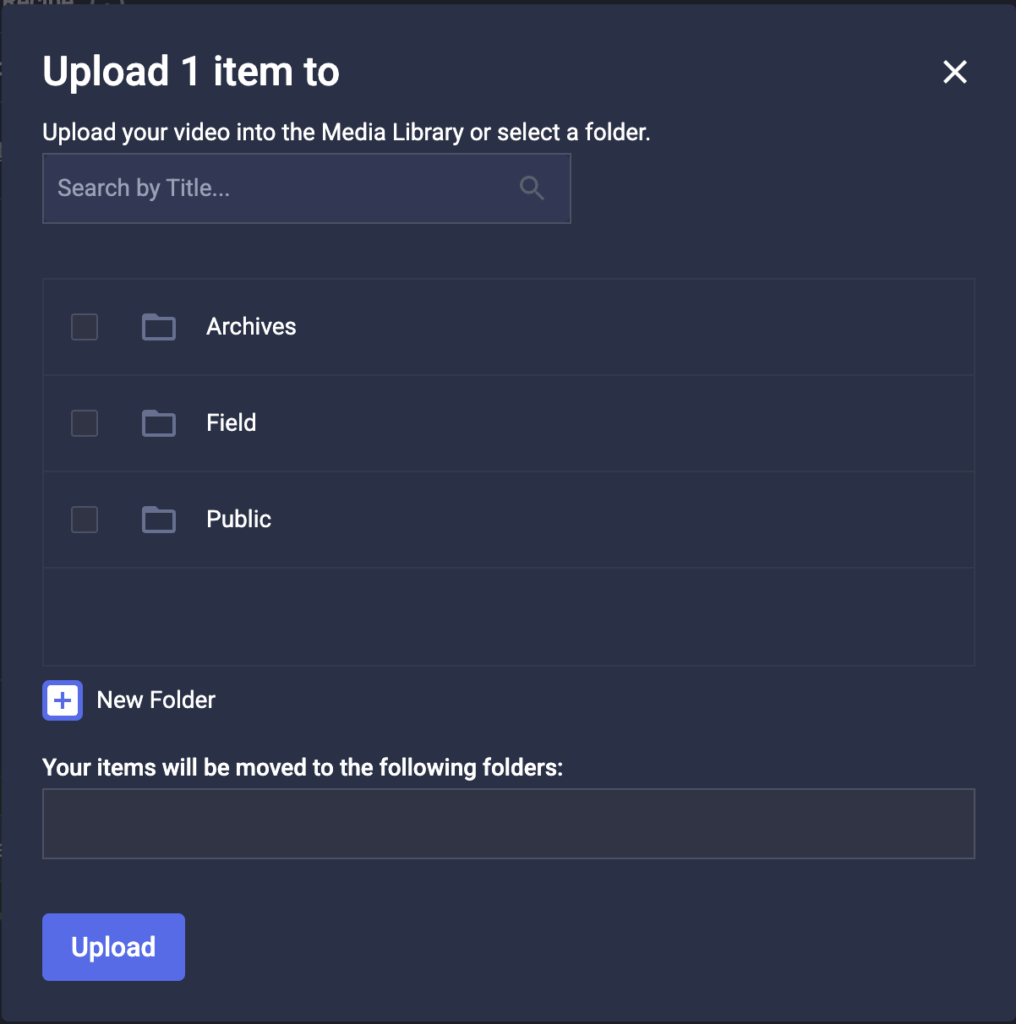
4. Select the location where your video will be saved, or create a new folder for it. And click “Upload”.
5. Once the upload reaches 100%, the video appears in your “Videos” library.Where you can manage it and all other videos

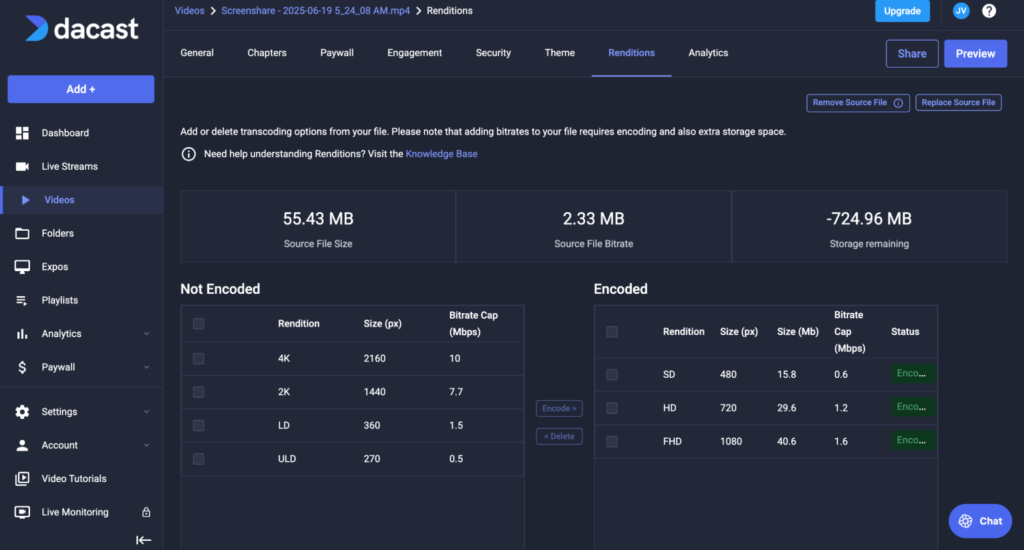
6. Configure Video Settings and Renditions:
After uploading, you can adjust settings and add multiple renditions (SD,HD,4k, etc.) for smoother streaming on various devices.
To do this:
- Go to your video file
- Click the “renditions” tab
- Add your desired renditions.
- Dacast will automatically encode each one of the selected renditions.
This feature is ideal for responsive video embed for mobile and desktop viewers.
How to Embed MP4 Videos Manually Using HTML5
Embedding MP4 videos on your website can be done in multiple ways, including using the Dacast player or embedding an iFrame. This section explains both approaches and provides practical guidance on implementing manual MP4 embedding with fallback options.
1. Embedding MP4 Videos via the Dacast Player
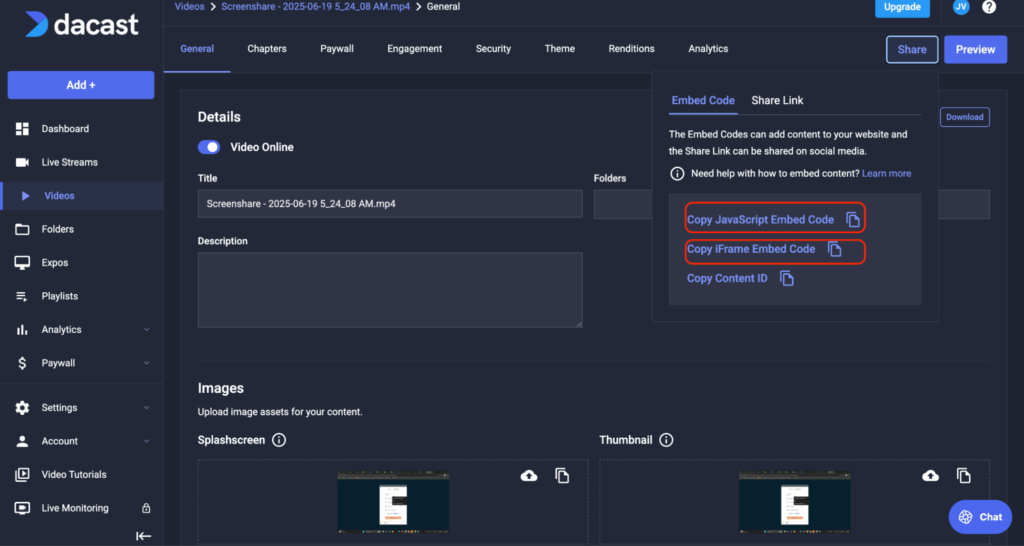
When you upload and host your MP4 videos on Dacast, you can easily embed them on your website using the player and embed codes provided by the platform:
- After uploading your video via the Dacast MP4 uploader, navigate to “share” button.
- Choose the embed code type: JavaScript (JS) or iframe.
- JS embed code supports advanced features like website referrer restrictions and DRM.
- The iframe embed code is broadly compatible with most website builders and CMS platforms.
- Copy the embed code and paste it into your website’s HTML where you want the video to appear.
- The embedded Dacast player delivers adaptive streaming, multi-bitrate support, and responsive video embed for mobile devices.
This method is ideal for professional MP4 hosting via Dacast, offering enhanced security, analytics, and CDN delivery.
2. Embedding MP4 Videos Using the HTML5 <video> Tag
For direct manual embedding without relying on third-party players, the HTML5 <video> element is the standard way to add MP4 videos to your webpages. Embedding via the Dacast player is recommended for professional MP4 video hosting with advanced features. On the other hand, the HTML5 <video> tag provides a straightforward solution with fallback support for simple, manual embedding or self-hosting.
Basic HTML5 Video Tag Implementation
Here is a simple example of embedding an MP4 video using the <video> tag with controls and fallback text:
<video controls width=”100%”>
<source src=”yourvideo.mp4″ type=”video/mp4″>
Your browser does not support the video tag.
</video>
- The controls attribute adds playback controls (play, pause, volume).
- The width attribute sets the player width; here, it’s set to 100% for responsive sizing.
- The <source> tag specifies the video file and its MIME type.
- The fallback text inside the <video> tags displays if the browser does not support HTML5 video.
Adding Multiple Sources for Compatibility
To improve cross-browser support, you can include multiple video formats:
<video controls width=”640″ height=”360″>
<source src=”video.mp4″ type=”video/mp4″>
<source src=”video.webm” type=”video/webm”>
Your browser does not support the video tag.
</video>
This ensures playback on browsers that may not support MP4 but support WebM or other formats.
Common Attributes for Customization
- autoplay: Starts video playback automatically (note: most browsers require muted for autoplay to work).
- muted: Mutes the video sound.
- loop: Repeats the video indefinitely.
- poster: Displays an image before the video starts.
Why Use the HTML5 <video> Tag?
- It eliminates the need for third-party plugins or players.
- Provides native browser support for video playback.
- Allows full control over player appearance and behavior via HTML attributes and CSS.
- Enables fallback messaging for unsupported browsers.
Limitations and Considerations
- Browser support for video codecs varies; providing multiple source formats is recommended.
- Autoplay restrictions in browsers (especially Chrome) require muted videos to autoplay.
- The <video> tag lacks advanced streaming features like DRM, analytics, or adaptive bitrate streaming, which platforms like Dacast provide.
This manual embedding approach complements the Dacast MP4 uploader workflow and gives you flexibility on how to embed MP4 video HTML5 players on your site.
MP4 Optimization for Web Playback
Optimizing MP4 videos for web playback ensures fast load times, smooth streaming, and a positive user experience. This is especially needed when you want to host MP4 videos on your website or provide professional MP4 hosting via Dacast. Below are key compression tips, bitrate and resolution recommendations, and best practices for optimization.
Compression Tips
- Use tools like Handbrake or FFmpeg to compress videos efficiently without sacrificing too much quality. These tools allow you to reduce file size by adjusting codecs, bitrates, and resolution.
- When compressing, use the H.264 codec for broad compatibility and balance between quality and file size.
- Optimize the video structure for web playback by moving the MOOV atom to the beginning of the file (using FFmpeg’s -movflags +faststart), which enables faster playback start.
Bitrate and Resolution Recommendations
Our recommendations:
- 240p@30fps – 300-500 – main profile
- 360p@30fps – 600-1000 – main profile
- 480p@30fps – 1000-2000 – main profile
- 720p@30fps – 2500-4000 – high profile
- 720p@60fps – 3500-6000 – high profile
- 1080p@30fps – 4500-6000 – high profile
- 1080p@60fps – 6000-9000 – high profile
- 1440p@30fps – 8000-15000 – high profile
- 1440p@60fps – 12000-24000 – high profile
- 2160p@30fps – 16000–34000 – high profile
- 2160p@60fps – 20000–51000 – high profile
Bitrate mode – CBR
- Keyframe interval each 2 seconds (each 60 or 120 frames – depends of framerate)
- Offer multiple resolutions and bitrates to support adaptive streaming, allowing viewers on slower connections to access lower-quality versions without buffering.
- For mobile users, consider lower resolutions and bitrates to reduce data consumption and improve load times.
Optimization Best Practices
- Choose streaming over progressive download where possible. Streaming protocols like HLS or DASH deliver video in chunks, enabling adaptive bitrate streaming and better buffering control.
- Use multi-bitrate streaming to dynamically adjust video quality based on network conditions, improving playback smoothness.
- Implement responsive video embed for mobile devices by setting player width to 100% and using CSS to maintain aspect ratio.
- Avoid autoplay with sound enabled to prevent a poor user experience; if autoplay is necessary, mute the video by default to comply with browser policies.
- Let users control playback with visible controls, pause, rewind, and volume options to enhance accessibility and engagement.
Additional Tips
- Use Dacast CDN delivery for MP4 to ensure fast and reliable streaming globally.
- Monitor key performance metrics such as load time, buffering rate, and startup delay to identify optimization opportunities.
- Consider the balance between video quality and file size to maintain a good visual experience without excessive bandwidth usage.
Secure Your MP4 Videos
Protecting your hosted videos is crucial, especially for businesses and content creators concerned about unauthorized access, piracy, or misuse. You need to understand the available privacy and security options if you’re exploring how to host MP4 videos on your website or seeking advanced security for MP4 hosting via Dacast.
Dacast offers a suite of features to safeguard your MP4 content, ensuring only authorized viewers can access your videos:
- Domain Restriction: Easily configurable in the Dacast dashboard, ensuring your videos only play on approved domains.
- Token-Based Access: Supports secure, tokenized delivery for both live and on-demand content.
- Geo-Blocking: Set up regional restrictions with just a few clicks to control where your videos are viewable.
Dacast combines these tools with secure CDN delivery, giving you control over who can access your content and where it can be played. This is especially important for MP4 hosting via Dacast, where protecting intellectual property and monetized content is a top priority.
How to convert a video file to MP4
If you need to convert your video to MP4, there are many reliable converters available online. As mentioned earlier, you can also use the Dacast MP4 uploader to automatically transcode videos within the platform for seamless MP4 hosting via Dacast. However, if you prefer to convert videos independently before uploading, here is an updated list of popular and effective video converters.
VideoProc Converter AI
VideoProc Converter AI is a powerful, fast, and versatile converter available for both Windows and macOS. It supports over 420 output formats, including MP4, and offers advanced GPU acceleration for up to 47x faster conversion speeds without visible quality loss. It also supports batch conversion and 4K/8K videos, making it ideal for high-quality video preparation.
- Best for: Fast, high-quality conversion with broad format support
- Platforms: Windows, Mac (Win 7+ / macOS 10.13+)
- Pricing: Free for short videos, paid for full features
Handbrake
HandBrake is a free, open-source, and cross-platform video converter widely used by both beginners and professionals. It supports MP4, MKV, and WebM formats, offers advanced compression and encoding options, and allows batch processing via a queue system. HandBrake is excellent for optimizing videos for web playback and reducing file sizes without compromising quality.
- Best for: Free, customizable video encoding and compression
- Platforms: Windows, Mac, Linux
- Pricing: Free
HitPaw Univd (HitPaw Video Converter)
HitPaw Univd is a user-friendly converter that supports over 1000 formats, including MP4. It excels in batch conversion with up to 120X faster speeds and maintains high video quality, including 8K and 4K. It also offers editing features to polish videos before conversion.
- Best for: Batch conversion with high resolution support
- Platforms: Windows, Mac
- Pricing: Paid, with a trial available
Freemake Video Converter
Freemake is a Windows-only converter supporting over 200 formats. It offers preset profiles for iOS and Android devices and can also rip online videos from YouTube into MP3. It’s versatile and easy to use for quick conversions.
- Best for: Versatile Windows users needing device presets
- Platforms: Windows
- Pricing: Free with optional paid features
Any Video Converter Free
This free converter supports a wide range of formats and includes features for downloading and converting online videos from platforms like YouTube and Facebook. It also offers basic editing tools such as trimming and cropping.
- Best for: Free converter with online video download capabilities
- Platforms: Windows, Mac
- Pricing: Free
Vidmore Video Converter
Vidmore offers fast processing and supports over 200 formats with no quality loss. It includes editing options and supports 4K and HD video conversion.
- Best for: Simple, fast conversion with editing tools
- Platforms: Windows, Mac
- Pricing: Paid with a free trial
SEO and Analytics for Hosted Videos
When considering how to host MP4 videos on your website, understanding the impact of video analytics and SEO is crucial for maximizing engagement and site performance. Using a robust platform like Dacast not only facilitates MP4 hosting but also provides powerful tools to track viewer behavior and improve your video strategy.
Engagement Tracking with Dacast Analytics
Dacast offers an advanced video analytics dashboard that provides real-time and historical insights into your video content’s performance. Key engagement metrics include:
- Viewer Behavior: Track plays, average watch time, and drop-off points to understand which parts of your videos captivate or lose your audience.
- Audience Demographics: Analyze viewer locations, devices, and browsers to tailor content and optimize delivery.
- Concurrent Viewers and Data Consumption: Monitor live stream attendance and bandwidth usage in real time.
- Monetization Insights: For paywalled content, track revenue, subscriptions, and transactions linked to video views.
These insights help you refine your content, improve viewer retention, and make data-driven decisions to grow your audience. This level of video hosting with analytics is especially valuable for video hosting for business websites aiming to optimize ROI.
SEO Benefits of Self-Hosting Videos vs. YouTube Embedding
Self-hosting your videos through platforms like Dacast offers distinct SEO advantages compared to embedding YouTube videos:
- Improved Website Traffic: Self-hosted videos keep visitors on your site longer, increasing engagement signals that boost SEO rankings.
- Full Control Over Metadata: You can customize video titles, descriptions, and schema markup to improve search engine indexing.
- No Competing Links: Unlike YouTube embeds that often encourage viewers to leave your site, self-hosted videos keep users engaged on your pages.
- Branding and User Experience: White-label players and responsive embeds enhance your site’s professionalism and usability, contributing to lower bounce rates.
Combine MP4 hosting via Dacast with SEO best practices to enhance your site’s visibility and user engagement more effectively than relying solely on third-party platforms.
Core Web Vitals Impact of Embedded Videos
Google’s Core Web Vitals, particularly Largest Contentful Paint (LCP) and Cumulative Layout Shift (CLS), are critical metrics affecting page ranking and user experience:
- LCP: Videos, especially large embedded players, can delay the loading of the main content. Optimizing video size, lazy loading, and using efficient delivery via Dacast CDN delivery for MP4 can reduce LCP times.
- CLS: Improperly sized or dynamically loaded video players can cause layout shifts, frustrating users. Using fixed dimensions in your MP4 embedding code or responsive video embed for mobile helps maintain stable layouts.
Properly optimized video embeds—whether via Dacast’s player or HTML5 video tags—ensure your pages meet Core Web Vitals standards, balancing rich media with fast, stable loading.
Using Dacast’s comprehensive analytics and secure, performant MP4 hosting solutions empowers you to track engagement effectively, boost SEO, and deliver an optimal viewing experience across devices. This makes Dacast a strong choice when deciding how to host a video professionally on your website.
FAQs
What is the best way to host MP4 videos on my website?
The best way is to use a professional video hosting platform like Dacast, which offers optimized MP4 hosting via Dacast with adaptive streaming, CDN delivery, and easy embedding. This ensures fast, reliable playback across all devices without the bandwidth and management challenges of self-hosting
How do I embed an MP4 file with HTML5?
Use the HTML5 <video> tag with a source pointing to your MP4 file, for example:
<video controls width=”100%”>
<source src=”yourvideo.mp4″ type=”video/mp4″>
Your browser does not support the video tag.
</video>
This method allows native playback without third-party players and supports fallback text for unsupported browsers.
What video format is best for website playback?
MP4 (with H.264 video codec and AAC audio codec) is the most widely supported and versatile format for web playback, balancing quality, file size, and compatibility across browsers and devices. Alternatives like WebM offer better compression but have limited support.
Can I host MP4 videos without using YouTube?
Yes, you can self-host MP4 videos or use professional platforms like Dacast, Vimeo Pro, or Cloudflare Stream. These options provide better control, branding, and security compared to YouTube, especially for video hosting for business websites.
How can I secure my MP4 videos online?
Use domain referrer restrictions, tokenized access, DRM, and geo-blocking to protect your videos. Platforms like Dacast offer these security features integrated with their hosting services, ensuring only authorized viewers can access your content.
What bitrate and resolution should I use for web-hosted MP4 videos?
Recommended bitrates vary by resolution:
- 240p@30fps – 300-500 – main profile
- 360p@30fps – 600-1000 – main profile
- 480p@30fps – 1000-2000 – main profile
- 720p@30fps – 2500-4000 – high profile
- 720p@60fps – 3500-6000 – high profile
- 1080p@30fps – 4500-6000 – high profile
- 1080p@60fps – 6000-9000 – high profile
- 1440p@30fps – 8000-15000 – high profile
- 1440p@60fps – 12000-24000 – high profile
- 2160p@30fps – 16000–34000 – high profile
- 2160p@60fps – 20000–51000 – high profile
Offering multiple bitrates and resolutions enables adaptive streaming for better playback on varying network conditions and devices.
Conclusion
Video technology evolves constantly, meaning there are new developments coming each day. If you want to offer your viewers the best quality and most compatible video files, MP4 video hosting is your best bet! MP4 video files are the most versatile and fastest video format available today. Use it to do fast and easy MP4 video hosting on your website via your Dacast account.
So what do you think? Do you have further questions or related topics you’d like us to address in future articles? Let us know in the comment section below, and we’ll get back to you as soon as we can. We love to hear from our readers, and we appreciate your insights and feedback. For regular tips on live streaming and exclusive offers, we also invite you to join our LinkedIn group.
For more details on plans and costs, you can review our live streaming pricing plans If you’re considering giving the Dacast streaming platform a try, why not take advantage of our 14-day free trial (no credit card required)? That way, you can test out all our great features for yourself before committing to a plan. To start streaming today, just click the button below!
