



Auto Trash for Recordings

Dacast has introduced Auto Trash for Recordings, a new feature that automatically moves VODs from a live stream channel to trash after a configurable number of days. This helps you manage storage and keep your content library organized without manual cleanup.
No action is required to use this feature, it is opt-in and can be configured at any time from your live stream channel settings.
This article explains how Auto Trash works, how to configure it, and what to keep in mind before enabling it.
How It Works
When enabled, Auto Trash monitors all recordings associated with a live stream channel. Once a recording reaches the age threshold you have set, it is automatically moved to the trash. From there, Dacast’s standard trash retention policy applies:
Videos in trash are permanently deleted after 30 days. This two-step process gives you a window to review and recover content before it is gone for good.
How to Enable Auto Trash
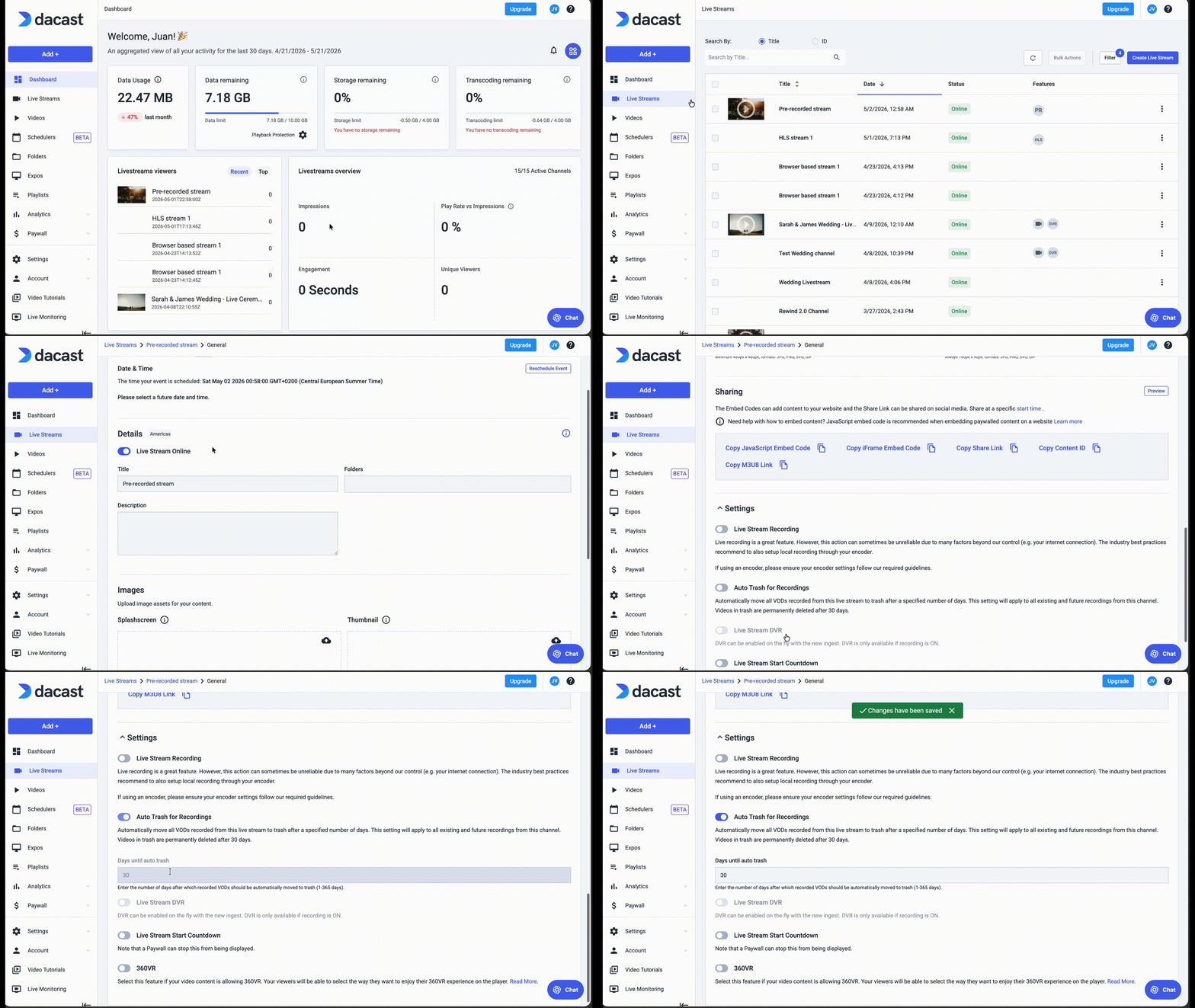
- Navigate to your Live Stream channel settings.
- Scroll to the Recordings section.
- Toggle on Auto Trash for Recordings.
- Enter the number of days after which recordings should be moved to trash.
Who Is Affected by This Setting?
This setting applies to all existing and future recordings from the channel where it is enabled. This means recordings already associated with that channel will be evaluated against the rule immediately upon activation — not just recordings made going forward.
Important: Review your existing recordings before enabling Auto Trash if you need to preserve older content. Any recording that has already exceeded the configured threshold may be moved to trash shortly after the setting is turned on.
Recovering a Recording
If a recording was moved to trash by Auto Trash and you need to restore it, you have up to 30 days to do so before it is permanently deleted.
- Go to your Video Library.
- Open the Trash folder.
- Locate the recording and select Restore.
Use Cases
- Recurring live events such as weekly webinars or sports broadcasts where older recordings are no longer needed after a set period.
- Storage management for accounts with high recording volumes.
- Content retention policies that require recordings to be purged after a defined number of days.
FAQ
Will this affect recordings I want to keep?
Yes, if they are stored under a channel where Auto Trash is enabled. To preserve a specific recording indefinitely, move it out of the channel’s recording library or disable Auto Trash before it is flagged.
Can I undo a permanent deletion?
No. Once a video has been in the trash for 30 days, it is permanently deleted and cannot be recovered. Make sure your threshold is set appropriately for your retention needs.
Does this setting apply to all my channels?
No. Auto Trash is configured per channel. You must enable and configure it individually for each live stream channel where you want it active.
Can I change the threshold after enabling it?
Yes. You can update the number of days at any time from the channel’s Recordings settings. The updated threshold will apply to all recordings going forward.
Need Help?
If you have questions or need assistance setting up Auto Trash, our support team is available 24/7.
- Live chat: available directly from your Dacast dashboard
- Email: support@dacast.com
- Phone: +1 855-896-9300
Last updated: May 2026 · Feature available: May 2026
