



Getting Started with the Model Context Protocol (MCP) Server

Use the Dacast Model Context Protocol (MCP) Server to bring Dacast’s streaming and video hosting capabilities directly to your AI tools.
The Dacast MCP (Model Context Protocol) Server integrates Dacast’s comprehensive video streaming and hosting platform with your AI-powered applications. Once configured, you can upload and manage video content, control live streams, review analytics, and access nearly all of Dacast’s broadcasting infrastructure through natural-language prompts in supported AI clients.
This guide walks you through the features available in the Dacast MCP server and shows you how to connect it to a variety of AI clients.
Tools & Routes
- Channel API: Get/List live streams, create live streams, update live streams, enable recording/DVR.
- Playlist API: Get/List playlists, create playlist, update playlist, add content to playlist, change playlist content position.
- Images API: Upload thumbnails and splashscreens.
- Simulcast API: List simulcast destinations for channel, adding/removing simulcast destinations.
For security reasons, methods related to deleting any content are not available via MCP.
What can I do with your MCP Server?
With simple prompts using natural language, you could:
- “Create a new stream called ‘Monthly Update’, simulcast it to YouTube, turn recording ON, and add it to a playlist.”
- “Duplicate your last live stream setup, change the title, keep the same simulcast destinations, and make sure recording is turned ON.”
- “Create a new live stream for next week, use our default settings, simulcast to your usual destinations, and add it to a playlist.”
Example Flow:
- “Create a new ABR Channel with enabled DVR in AP Region”.
- “Set Title ‘ABR+DVR+AP+[current date and time]’, set description ‘This is a test channel created via MCP’ “.
- “Add channel to playlist XYZ on the third position”.
- “When you are done, provide the credentials and give me the recommended settings for OBS”.
Prerequisites
- A Dacast account.
- MCP Server URL (https://app.dacast.com/settings/integrations).
- Claude Web or Desktop , Cursor, ChatGPT (developer mode) or any other client that supports remote MCP servers, installed and updated to the latest version. A paid account for chatGPT or Claude is needed.
Configuring MCP Server
How to setup MCP in Cursor
- Open Settings (CTRL+SHIFT+J on Win)
- Click Tools and MCP
- Click New MCP Server
- Editor will open mcp.json, put following json (don’t forget to put your API key):
- Save
- Restart Cursor
- Go back to Settings and make sure that MCP is enabled (green status)
- You are done, now in any chat you can ask about Dacast stuff (channels/playlists)
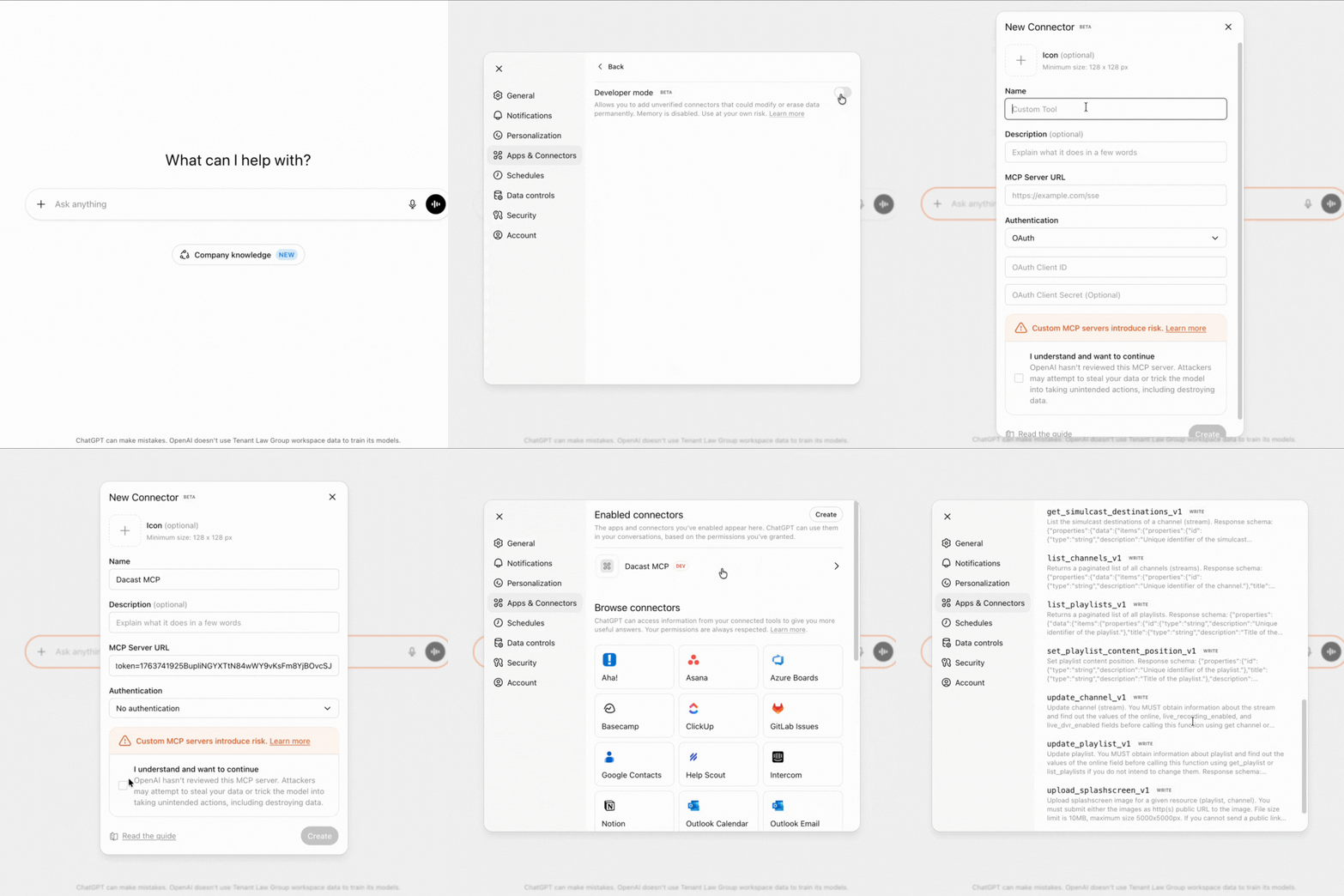
How to setup MCP in ChatGPT (Web)
- Open Settings
- Click Apps and Connections
- Click Advanced Settings
- Enable Developer mode
- Click Back
- You will see Create button near Enabled connectors, click that button
- On the appeared screen enter the Name of connection (e.g. Dacast) in the MCP Server URL enter: https://mcp.dacast.com/m/?token_key=Your_API_Key (don’t forget to put your API key)
- For Authentication choose “No authentication”
- Click Create
How to setup MCP in Claude
- Open Settings
- Click Connectors
- Click Add custom connector
- On the appeared screen enter the Name of connection (e.g. Dacast) in the Remote MCP Server URL enter: https://mcp.dacast.com/m/?token=Your_API_Key (don’t forget to put your API key)
- Click Add
Contact
If you run into issues or have questions:
- Check the Model Context Protocol documentation for general MCP setup guidance
- Review Claude’s MCP documentation for Claude-specific configuration
- Visit our API Reference for detailed endpoint documentation
- Contact support: dacast.com/contact/
Additional Resources
- Dacast Custom Ingest (V2): Setup and Benefits
- Quick Start with Live Streaming (OBS Studio)
- Simulcast Streaming to X (ex. Twitter) and Dacast Using RTMP
- M3U8 Online Player to Test Your HLS Stream
- Low Latency Streaming: HLS Stream Ingest
- HLS Streaming: What You Need to Know
- How to Host and Embed an HLS Live Stream on Your Website
- What is RTMP? The Real-Time Messaging Protocol Explained
- What is RTMP Ingest and Why is it Important for Live Streaming?
- HLS Ingest: What It Is and How It’s Compatible with Streaming Software
- Dacast Live Stream Recording Tutorial
- Introduction to Live Streaming with Dacast: A Step by Step Walkthrough
