



How to Automatically Organize Live Stream Recordings into Folders and Expos

Dacast allows you to automatically organize your live stream recordings by saving them to a specific folder and adding them to an Expo video portal.
You can configure these destinations individually for each live stream channel, eliminating the need to manually organize recordings after every broadcast.
This guide explains how to configure recording destinations, manage Expo sections, and control where recordings appear within your Expo.
1. Before You Start
Make sure that:
- You have an existing live stream channel.
- Live Recording is enabled for that channel.
- If you want to add recordings to an Expo, the Expo must already exist. Folders can be created directly from the recording settings.
If you haven’t configured live recording yet, see our Live Stream Recording Tutorial.
2. How to Automatically Save Recordings to a Folder
You can assign a destination folder to each live stream channel. New recordings from that channel will automatically be saved to the selected folder.
Step 1: Open Your Live Stream Settings
- Log in to your Dacast account.
- Navigate to Live Streams.
- Select the channel you want to configure.
- Open the channel’s General settings and locate the recording options.
Step 2: Select or Create a Recording Folder
Locate the Folder to upload new recordings field. By default, it displays the placeholder Select or create a folder.
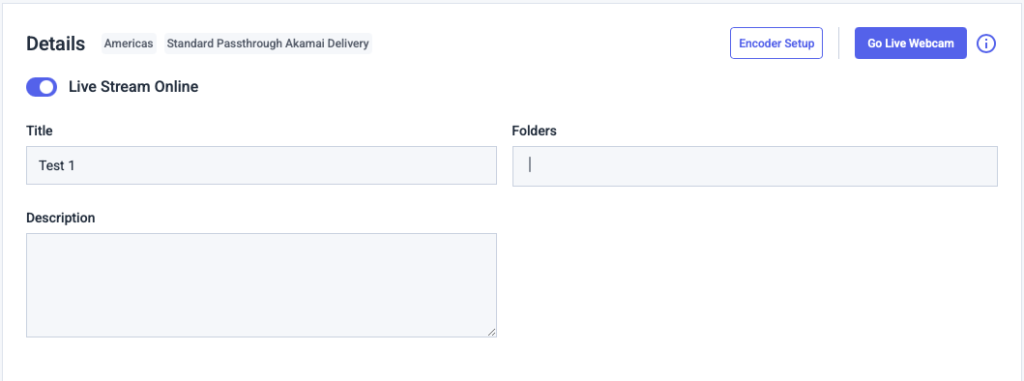

Click the field and start typing the name of an existing folder. A dropdown will display matching folders. Click the folder you want to use.
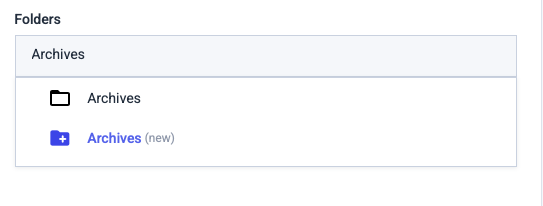

To create a new folder, type a name that does not match an existing folder. The dropdown will offer to create a folder with that name, marked (new). Click this option to create and select the new folder.
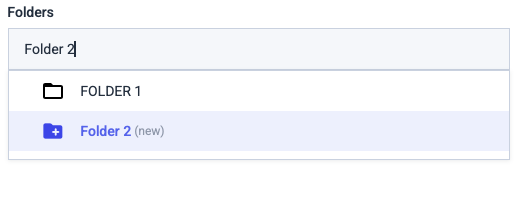

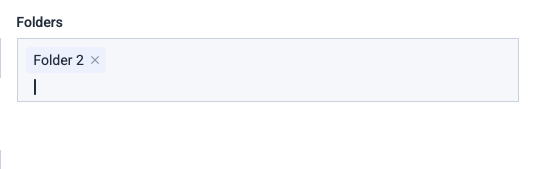
Once selected, the folder name will appear inside the field.

Save your changes.
Once configured, new recordings from this channel will automatically be placed in the selected folder after processing. To manually reorganize existing recordings afterward, see How to Organize Dacast VOD Content in the New Back Office.
Note: Selecting a folder is optional. If you leave this field empty, new recordings will be saved to your main Media Library by default.
You can assign different folders to different live stream channels to keep your content organized.
How to Change or Remove a Recording Folder
To change the destination folder:
- Open your live stream channel’s recording settings.
- Click the X icon next to the currently selected folder to clear the selection.
- Search for and select another folder, or create a new one.
- Save your changes.
To restore the default behavior, click the X icon and leave the field empty. New recordings will then be saved directly to your main Media Library.
Important: Removing a folder from this field does not delete the folder or its existing recordings. It only clears the recording destination for this live stream channel.
3. How to Automatically Add Recordings to an Expo
In addition to saving recordings to folders, you can automatically add them to an Expo video portal.
This is useful for broadcasters who want recorded events, webinars, classes, or other live content to become available in their video gallery without manually updating the Expo.
Step 1: Select an Expo
- Open your live stream channel settings.
- Locate the Recording Expo section.
- Click the Select Expo for Future Recordings field.
- A dropdown list of available Expos will appear. You can also start typing to search for an existing Expo.
- Select the Expo where you want future recordings to appear.
![Expo selection dropdown]](https://prod-images.dacast.com/wp-content/uploads/2026/10/xpo-selection-dropdown-1024x567.png)
Note: You must create an Expo before configuring it as a recording destination. New Expos cannot be created from this interface.
For instructions on creating an Expo, see our Expo Video Portal guide.
Step 2: Select an Expo Section (Optional)
After selecting an Expo, the Select Section field becomes available.
- Click the Select Section field.
- Choose an existing section from the selected Expo.
- Alternatively, select No section to add recordings directly to the Expo.
Important: Expo sections must be created in advance. You cannot create new sections from the recording settings.
If you select No section, future recordings will automatically be inserted at the top of the Expo content list.
Step 3: Choose the Insertion Position
The available insertion positions depend on whether you have selected an Expo section and whether it already contains videos.
- No section selected: New recordings will automatically appear at the top of the Expo content list. The insertion position field displays At top of section, even when no section is selected.
- Empty section: Select At top of section to place new recordings at the beginning of the selected section.
- Section with existing videos: You can choose where new recordings appear relative to existing content:
- Before existing content: Insert recordings before the selected video.
- After existing content: Insert recordings after the selected video.
Click Select Insertion Position and choose the appropriate option.
This allows you to control the placement of new recordings within your Expo without manually reorganizing the gallery after each broadcast.
Step 4: Save Your Expo Settings
Once you’ve selected the Expo, section, and insertion position:
- Review your configuration.
- Click Save recording Expo settings to apply your changes.
Important: You must click Save recording Expo settings to save your configuration. Selecting an Expo, section, or insertion position alone does not save the changes.
Step 5: Verify Your Recording
After your live stream recording has finished processing:
- Open Expos in your Dacast dashboard.
- Select the configured Expo.
- Open the selected section, if applicable.
- Verify that the new recording appears in the configured position.
Note: This feature automatically adds recorded videos to an Expo, not the live stream itself.
How to Change or Remove Recording Expo Settings
You can update the Expo destination for a live stream channel at any time.
To change the configuration:
- Open your live stream channel’s Recording Expo settings.
- Select a different Expo, section, or insertion position.
- Click Save recording Expo settings to apply your changes.
To stop automatically adding recordings to an Expo:
- Open the Recording Expo settings.
- Click Remove recording Expo settings.
This removes the automatic Expo destination configuration for the channel. New recordings will no longer be automatically added to the previously selected Expo.
4. Frequently Asked Questions
Can I save recordings to a folder and an Expo at the same time?
Yes. Folder and Expo destinations can be configured for the same live stream channel, allowing you to organize recordings in your video library and make them available through your Expo.
Can different live stream channels use different recording destinations?
Yes. Recording destinations are configured individually for each live stream channel.
What happens if I don’t select a recording folder?
New recordings will be saved directly to your main Media Library by default.
Can I create a new folder without leaving my live stream settings?
Yes. Type a new folder name into the Folder to upload new recordings field and select the option marked (new) from the dropdown.
What happens if I remove the selected recording folder?
Removing the folder selection restores the default recording destination (the main Media Library). It does not delete the folder or any recordings already stored in it.
Can I create an Expo or Expo section directly from the recording settings?
No. Unlike folders, Expos and Expo sections must be created in advance. You can then select them from the recording settings.
Do I need to select an Expo section?
No. Sections are optional. If you select No section, new recordings will be added at the top of the Expo content list.
Can I control where new recordings appear in my Expo?
Yes. When your selected Expo section contains existing videos, you can choose to insert new recordings before or after a specific video using the Select Insertion Position field.
If no section is selected, recordings are automatically added at the top of the Expo content list.
What happens if I delete an Expo section used for automatic recordings?
If the configured Expo section is deleted, subsequent recordings will be added directly to the Expo without a section.
Will previously recorded videos be moved when I change the destination?
Changing the recording destination is intended for future recordings. Existing recordings can be organized manually.
Can I disable automatic Expo publishing?
Yes. Open the channel’s Recording Expo settings and click Remove recording Expo settings. New recordings will no longer be automatically added to that Expo.
Does automatic Expo publishing also add the live stream itself?
No. Only recordings are automatically added to the configured Expo. The live stream channel itself is not added through this feature.
5. Additional Resources
Need Help?
If you need assistance configuring automatic recording destinations, our support team is available 24/7.
Contact us through the live chat in your Dacast dashboard or email support@dacast.com.
