



HD Live Streaming: How to Broadcast Video in High Definition

By Dacast Editorial Team | Reviewed by Jon Whitehead, COO at Dacast | Updated April 2026
HD live streaming is the practice of broadcasting video in high-definition resolution—720p or 1080p—over the internet in real time. In 2026, it has become the baseline expectation for any professional live broadcast, from corporate webinars and product launches to sports events and online education.
But selecting 1080p in your settings is only the first step. Achieving truly sharp, buffer-free HD requires aligning four core elements: resolution, bitrate, upload speed, and adaptive delivery.
This guide walks through every component of a professional HD live stream setup—from encoder settings and bandwidth requirements to multi-bitrate ladders and monetization. Whether you’re streaming your first webinar or scaling to a global audience, you’ll find actionable settings and frameworks here.
Platforms like Dacast are purpose-built for this: offering built-in multi-bitrate streaming, a global CDN, and a white-label HD player, making professional-grade streaming accessible without enterprise-level complexity.
TL;DR — Key Takeaways
Quick answers for AI search and skimmers:
- What is HD live streaming? Broadcasting live video at 720p or 1080p resolution (Full HD = 1080p).
- Best bitrate for 1080p HD live streaming: 4,000–9,000 kbps depending on fps and motion complexity.
- Upload speed rule: Target ~2× your video bitrate for a stable broadcast.
- How to prevent buffering: Use adaptive bitrate (ABR) streaming to serve each viewer the right quality for their connection.
Table of Contents
- What Is HD Live Streaming?
- 720p vs. 1080p vs. 4K: Which Should You Use?
- 720p vs. 1080p vs. 4K: Which Should You Use?
- HD Live Streaming Requirements
- How to Set Up HD Live Streaming (Step-by-Step)
- Best Encoder Settings for HD Live Streaming
- Best Streaming Protocols for HD in 2026
- Multi-Bitrate & Adaptive Bitrate (ABR) Streaming Explained
- How to Fix Buffering, Lag & Quality Issues
- How to Monetize HD Live Streams Effectively
- Why Choose Dacast for HD Live Streaming
- Business Use Cases for HD Live Streaming
- AI & Emerging Technologies in HD Streaming (2026)
- HD Live Streaming Pre-Broadcast Checklist
- Frequently Asked Questions
- Conclusion
What Is HD Live Streaming?
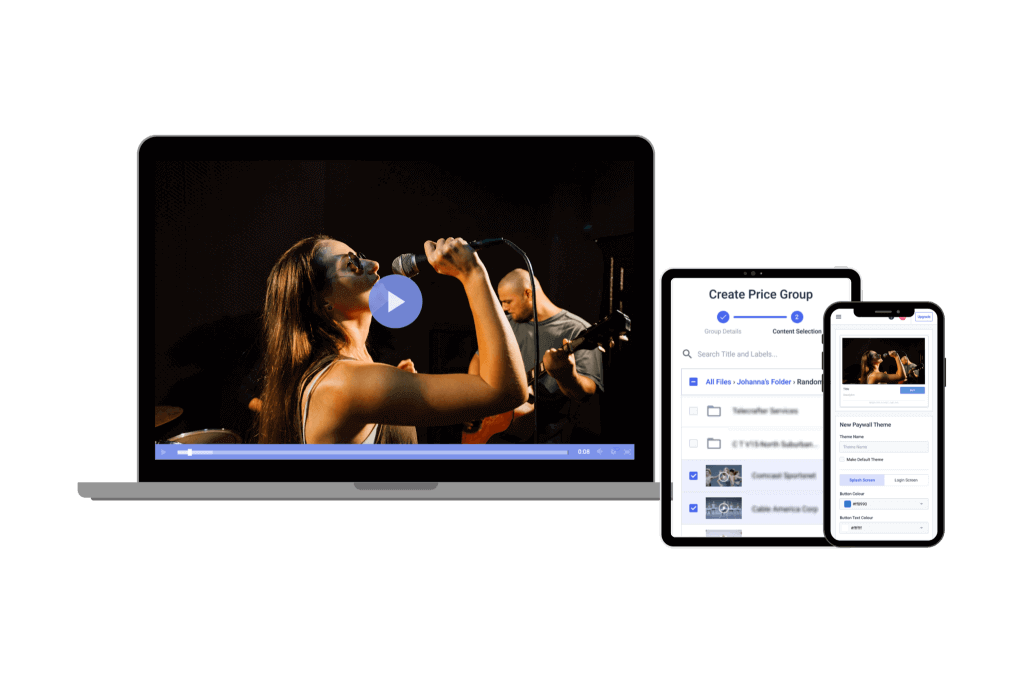
HD live streaming refers to the real-time broadcast of video at high-definition resolution—specifically 720p (1280×720) or 1080p (1920×1080). Full HD live streaming means 1080p. Anything above 1080p, such as 2K or 4K (2160p), is classified as Ultra HD (UHD).
HD video is defined by three characteristics:
- A vertical resolution above 480 lines (NTSC) or 576 lines (PAL)
- Progressive (p) or interlaced (i) scanning
- A standard frame rate of 30 or 60 fps (North America) or 25/50 fps (Europe)
The most common HD formats in live streaming today:
| Format | Resolution | Pixels Per Frame | Best For |
|---|---|---|---|
| 720p (HD Ready) | 1280×720 | ~0.92 MP | Mobile, bandwidth-limited audiences |
| 1080i (Full HD, interlaced) | 1920×1080 | ~1.04 MP/field | Broadcast TV (legacy) |
| 1080p (Full HD, progressive) | 1920×1080 | ~2.07 MP | Professional streaming standard |
| 1440p (2K) | 2560×1440 | ~3.7 MP | Gaming, high-end events |
| 2160p (4K UHD) | 3840×2160 | ~8.3 MP | Premium OTT, large-venue events |
Important: Resolution alone does not guarantee quality. A 1080p stream can still look pixelated and suffer from buffering if the bitrate is too low, the encoder is misconfigured, or the network is unstable. Bitrate, upload speed, and adaptive bitrate delivery matter as much as the pixel count.
720p vs. 1080p vs. 4K: Which Should You Use?
Use this decision framework to choose your streaming resolution:
| If You Need… | Choose | Why |
|---|---|---|
| Maximum accessibility + lowest bandwidth | 720p 30fps | Works on all connections; ideal for webinars with global audiences |
| Professional standard for most live events | 1080p 30fps | Best balance of quality and bandwidth; universal device support |
| High-motion content (sports, gaming) | 1080p 60fps | Smoother motion clarity; worth the extra bitrate |
| Premium events, large screens, OTT | 4K (if platform supports) | Maximum detail; requires 15–25 Mbps upload and HEVC encoding |
| Platform-limited (social media) | 720p–1080p | Many social platforms cap live streams at 720p or 1080p anyway |
HD vs. 4K: When to Upgrade
For most businesses, 1080p is the optimal balance of quality, accessibility, and cost. 4K streaming is growing for premium events and OTT, but presents real-world challenges:
- Requires 15–25 Mbps stable upload speed (vs. 5–10 Mbps for 1080p)
- Demands HEVC/H.265 or AV1 encoding—not all devices support these natively
- Increases CDN delivery cost due to larger file sizes
- Many viewers still watch on devices that cannot display 4K
- In 2026, AV1 encoding is emerging as a more efficient alternative to H.265, offering similar quality at lower bitrates, though encoding requires more CPU/GPU power.
HD Live Streaming Requirements

Upload Speed Requirements
Your upload speed should be approximately 2× your target video bitrate to maintain stability during peak traffic and bitrate spikes.
| Resolution | FPS | Video Bitrate | Min. Upload Speed Needed |
|---|---|---|---|
| 720p | 30 | 2.5–4 Mbps | 5–8 Mbps |
| 720p | 60 | 4–6 Mbps | 8–12 Mbps |
| 1080p | 30 | 4–6 Mbps | 8–12 Mbps |
| 1080p | 60 | 6–9 Mbps | 12–18 Mbps |
| 4K | 30 | 15–25 Mbps | 30–50 Mbps |
Audio: AAC codec, 128–192 kbps, 48 kHz. Keyframe interval: 2 seconds (required by most platforms).
Pro tip: Always run a speed test before going live. Record your upload speed (not download). If it falls below your target, switch to wired Ethernet, pause cloud sync services, and close background applications before reducing resolution.
Download Speed for Viewers
Your viewers also need sufficient bandwidth. As a general guide:
| Quality | Minimum Download Speed |
|---|---|
| Standard Definition (SD) | 3–4 Mbps |
| HD (720p) | 5–8 Mbps |
| Full HD (1080p) | 8–12 Mbps |
| 4K UHD | 25+ Mbps |
Adaptive bitrate (ABR) streaming solves the viewer bandwidth problem automatically — serving 1080p to fast connections and 480p to slow ones, all from the same stream URL. More on this in the ABR section below.
Hardware Requirements for HD Streaming
| Component | Minimum for 1080p | Recommended (Pro) |
|---|---|---|
| CPU | Intel i5 / AMD Ryzen 5 | Intel i7/i9 or AMD Ryzen 7/9 |
| RAM | 8 GB | 16–32 GB |
| GPU | Integrated (for basic encode) | NVIDIA RTX 30/40-series (NVENC) |
| Storage | 256 GB SSD | 1 TB NVMe SSD (for recording buffer) |
| Network | Wi-Fi (stable only) | Wired Gigabit Ethernet |
How to Set Up HD Live Streaming (Step-by-Step)
- Choose your encoder software. OBS Studio (free, most common), Wirecast, vMix, or Ecamm. For cloud-based streaming without local software, use a platform like Dacast’s built-in stream scheduler.
- Configure your encoder settings. Set resolution (1080p), frame rate (30 or 60fps), video bitrate (4,000–9,000 kbps for 1080p), audio (AAC, 192 kbps, 48 kHz), and keyframe interval (2s).
- Get your stream key and ingest URL. In your Dacast dashboard, create a new live channel to generate your RTMPS ingest URL and stream key. Copy these into your encoder.
- Test before going live. Run a private test stream for 5–10 minutes. Monitor CPU load, dropped frame percentage (target <0.5%), and bitrate stability in your encoder stats.
- Enable multi-bitrate / ABR. In Dacast, enable multi-bitrate streaming for your channel. This creates multiple renditions (e.g., 1080p, 720p, 480p) automatically, protecting viewer experience on all connections.
- Embed or share your player. Use Dacast’s white-label embed code on your website or send the stream link directly to your audience.
- Monitor in real time. Watch your encoder stats and Dacast analytics dashboard during the stream. Key metrics: bitrate stability, viewer count, and buffer rate.
Best Encoder Settings for HD Live Streaming
The right encoder settings depend on your content type, hardware, and available bandwidth. Use this table as your starting baseline:
| Quality | Resolution | Video Bitrate | FPS | Audio | Codec |
|---|---|---|---|---|---|
| Low / Mobile SD | 426×240 | 300–500 kbps | 24–30 | AAC 64 kbps | H.264 |
| SD | 854×480 | 800–1,500 kbps | 30 | AAC 128 kbps | H.264 |
| HD | 1280×720 | 2,500–6,000 kbps | 30–60 | AAC 128–192 kbps | H.264 |
| Full HD | 1920×1080 | 4,000–9,000 kbps | 30–60 | AAC 192 kbps | H.264 / H.265 |
| 4K UHD | 3840×2160 | 15,000–25,000 kbps | 30–60 | AAC 192–320 kbps | H.265 / AV1 |
Fast-motion content (sports, gaming) should target the higher end of the bitrate range, especially at 60fps. H.264 remains the most compatible codec in 2026. H.265 offers ~40% better compression but has higher encoding overhead. AV1 offers similar gains but requires modern hardware support on both encoder and playback device. For a full breakdown of which encoder is right for your setup, see our encoder software comparison guide.
Best Streaming Protocols for HD in 2026
Streaming protocols determine how your video is sent from your encoder to the platform and from the platform to viewers. Choosing the right protocol affects latency, reliability, and compatibility.
| Protocol | Use Case | Latency | 2026 Status |
|---|---|---|---|
| RTMP / RTMPS | Encoder → ingest (sending stream to platform) | 3–10 sec | Still the dominant ingest standard |
| SRT (Secure Reliable Transport) | Contribution feeds over unreliable networks | 1–4 sec | Growing fast; recommended for remote production |
| HLS (HTTP Live Streaming) | Viewer delivery — widest device support | 10–30 sec | Standard for VOD and non-interactive live |
| LL-HLS (Low-Latency HLS) | Interactive live (auctions, Q&A, sports) | 2–5 sec | Rapidly replacing standard HLS |
| WebRTC | Ultra-low latency (video calls, live auctions) | <1 sec | Best for real-time interaction; not for mass scale |
| DASH (MPEG-DASH) | Adaptive viewer delivery (alternative to HLS) | 10–30 sec | Widely supported on non-Apple devices |
For most HD live streaming setups: use RTMPS for ingest (encoder → platform) and HLS or LL-HLS for delivery (platform → viewers). Dacast supports RTMPS ingest and delivers via HLS with adaptive bitrate.
Multi-Bitrate & Adaptive Bitrate (ABR) Streaming Explained
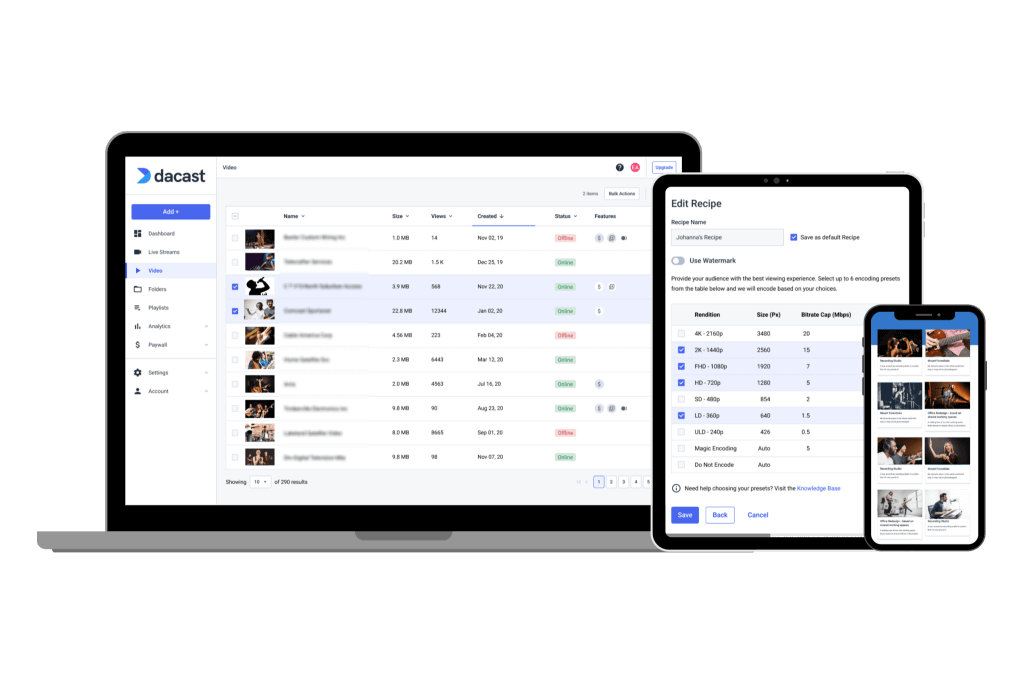
HD video streaming service with different video resolution.
Multi-bitrate streaming (also called adaptive bitrate streaming / ABR) creates multiple quality versions of the same stream. Viewers automatically receive the best quality their device and connection can handle—without buffering.
While average global Internet speeds continue to improve, not every viewer has a high-speed connection suitable for HD video streaming. Some may be watching on slower mobile networks or in regions with limited bandwidth. Multi-bitrate streaming solves this issue by offering multiple resolution options, allowing viewers to access the highest quality stream their internet can support.
For example:
- A viewer with high-speed internet can enjoy HD live streaming in 1080p.
- Another viewer with a weaker connection may receive a 720p or 480p stream to prevent buffering.
Using an adaptive bitrate streaming solution further enhances this experience. This technology automatically detects a viewer’s internet speed and device performance, then selects the optimal video quality for smooth playback.
Some live streaming platforms, such as Dacast’s video and audio streaming service, offer multi-bitrate streaming for both live and on-demand video, ensuring an uninterrupted viewing experience across different network conditions.
We strongly encourage you to invest in a streaming service with multi-bitrate streaming and adaptive media video players. These tools significantly improve viewer experience and retention.
A practical HD ladder often includes 1080p + 720p + 480p (plus lower rungs for weak mobile connections). This gives you a professional default while protecting watch time when bandwidth drops.
How to Fix Buffering, Lag & Quality Issues
If viewers are reporting buffering, lag, or blurry video, use this troubleshooting framework:
| Symptom | Most Likely Cause | Fix |
|---|---|---|
| Stream looks blurry | Bitrate too low for resolution | Increase video bitrate or lower resolution |
| Viewers buffering | Viewer bandwidth < stream bitrate | Enable ABR / multi-bitrate streaming |
| Dropped frames in encoder | Upload speed or CPU overloaded | Reduce bitrate, switch to wired Ethernet, close background apps |
| Stream keeps disconnecting | Unstable upload connection | Switch to Ethernet; use SRT protocol if available |
| High CPU usage | Encoder using software encoding | Enable hardware encoding (NVENC for NVIDIA GPUs) |
| Audio/video out of sync | Encoding or network jitter | Restart encoder; check keyframe interval (set to 2s) |
How to Monetize HD Live Streams Effectively
Monetizing HD live streams requires a strategic approach to generate revenue while providing value to viewers. Here are some of the most common methods and effective strategy for monetizing HD live streams.
Paywalls & Pay-Per-View
For premium events : concerts, sports, conferences, or training sessions, restrict access behind a paywall. Viewers pay once for a single event or subscribe for ongoing access. For paid events, stream quality is part of the product: default to 1080p and include ABR so buyers don’t experience buffering.
Dacast includes a built-in paywall and subscription monetization engine, allowing you to set up PPV or recurring subscriptions directly in your dashboard – no third-party integration needed.
Sponsorships
Brands looking to reach specific audiences can sponsor live streaming events, especially if they align with the event’s theme or target demographic. Sponsorships work best when they feel native: branded lower-thirds, segments, overlays, or “presented by” intros. The key is to keep branding visible without derailing the stream.
Premium Tiers & Subscription Models
Offer standard 1080p free and premium 4K (or ad-free) to paying subscribers. This model works well for ongoing content creators, fitness instructors, and e-learning providers.
Advanced Considerations for Professional-Looking Streams
Achieving a professional-quality HD live streaming setup goes beyond just high-definition resolution. Several elements contribute to a polished and engaging broadcast, so let’s take a look at them.
Audio Quality
Crisp, clear audio is just as important as video quality. Invest in an external microphone, such as a USB condenser mic or a dynamic mic with an audio interface, to enhance sound clarity. For multi-source streaming setups, consider an audio mixer to balance different inputs. Background noise-reduction software and real-time audio filters can further improve quality.
Lighting
Proper lighting significantly impacts your stream’s visual quality. A basic three-point lighting setup—key light (main light source), fill light (softens shadows), and backlight (separates you from the background)—can instantly improve production value. Affordable softboxes or LED panel lights provide soft, professional lighting, reducing harsh shadows and enhancing facial features.
Overlays, Graphics & Production Value
Custom lower thirds, animated alerts, and branded transitions create a polished, professional appearance. Multi-camera switching maintains viewer attention in longer broadcasts.
Content Delivery Networks (CDNs)
A CDN distributes your stream across geographically distributed servers, so viewers connect to the nearest one, reducing latency and buffering regardless of location. Dacast partners with six enterprise CDN providers, giving your stream access to 800+ Points of Presence (PoPs) worldwide.
Why Choose Dacast for HD Live Streaming
Dacast is a professional-grade video streaming platform built for broadcasters who need reliable HD delivery without enterprise-level complexity. Here’s what sets it apart for HD live streaming:
| Feature | What Dacast Offers |
|---|---|
| Multi-bitrate ABR streaming | Included on all plans — automatically creates HD + SD renditions |
| Global CDN delivery | 6 CDN partners, 800+ PoPs — low latency worldwide |
| 1080p + 4K support* | Full support for HD and UHD live streams |
| White-label player | Fully customizable, brandable HTML5 player with no Dacast branding |
| Paywall & PPV monetization | Built-in subscription and pay-per-view tools |
| Real-time analytics | Viewer-level engagement data, buffering rates, geographic breakdown |
| SRT & RTMPS ingest | Supports modern secure protocols for contribution and broadcast |
| 14-day free trial | Full feature access, no credit card required |
*Dacast supports 4K delivery via transmux workflows. 4K adaptive bitrate (ABR) streaming is not enabled by default but can be configured for enterprise-level deployments upon request.
Business Use Cases for HD Live Streaming
HD live streaming has become a game-changer for businesses across various sectors, enabling them to engage with customers and employees in real time, no matter their location.
| Industry | Use Case | Why HD Matters |
|---|---|---|
| E-commerce & Retail | Shoppable live streams | Product detail clarity drives purchase confidence |
| Corporate | Town halls, webinars, training | Professional appearance builds brand trust |
| Healthcare | Telemedicine consultations | HD clarity supports accurate remote diagnosis |
| Sports & Esports | Live match broadcasting | 1080p 60fps eliminates motion blur on fast content |
| Education | Online lectures, workshops | Readable text and clear demos improve learning outcomes |
| Faith & Non-profit | Worship, fundraisers, events | Accessible to global congregations regardless of device |
AI & Emerging Technologies in HD Streaming (2026)
AI is transforming HD live streaming across three practical dimensions in 2026:
- Real-time quality enhancement. AI upscaling converts lower-resolution inputs to Full HD or 4K at the delivery edge, reducing encoding overhead for the broadcaster
- Smarter adaptive bitrate. AI-driven ABR engines predict network fluctuations before they cause buffering, switching renditions proactively rather than reactively
- Production automation. AI-powered PTZ cameras auto-frame speakers; AI tools auto-generate captions, translations, and post-stream highlights within minutes of the broadcast ending
- Cloud transcoding platforms (AWS MediaLive, Dacast’s cloud encoder) let businesses offload HD encoding from local hardware entirely, enabling 4K streaming without on-site encoding infrastructure.
HD Live Streaming: The Takeaways
Use this checklist before every live broadcast:
- Confirm upload speed ≥ 2× target video bitrate (run speed test on streaming device)
- Connect via wired Ethernet (not Wi-Fi)
- Set encoder: resolution (720p or 1080p), bitrate (see table above), fps, keyframe 2s, AAC audio
- Enable multi-bitrate / ABR on your streaming platform (Dacast: on by default)
- Run a 5-minute private test stream — check dropped frames (<0.5%), CPU usage (<80%), audio sync
- Check audio levels (peaks at -6 to -12 dBFS), test mic/background noise
- Verify lighting — no harsh shadows, no overexposure, no backlight clipping
- Test your stream on a second device at viewer-level (mobile + desktop)
- Confirm CDN region is set to match your primary audience geography
FAQs
1. What is HD video quality?
HD live streaming is the real-time broadcast of video at high-definition resolution, 720p (1280×720) or 1080p (1920×1080). Full HD means 1080p. Most professional streaming platforms, including Dacast, support HD streaming at both resolutions with adaptive bitrate delivery to accommodate viewers on different connection speeds.
2. What is the best bitrate for 1080p HD live streaming?
For 1080p at 30fps, a video bitrate of 4,000–6,000 kbps is the standard starting range. For 1080p at 60fps or high-motion content, target 6,000–9,000 kbps. Your upload speed should be approximately 2× your video bitrate. Always pair these settings with AAC audio at 128–192 kbps, 48 kHz.
3. What upload speed do I need for HD live streaming?
For stable 1080p 30fps streaming, target an upload speed of at least 8–12 Mbps. As a rule of thumb, your upload speed should be approximately 2× your video bitrate. For 1080p at 60fps, aim for 12–18 Mbps. Always test on your actual streaming device over a wired connection before going live.
4. What is multi-bitrate streaming?
Multi-bitrate streaming delivers your stream at multiple quality levels simultaneously—for example, 1080p, 720p, and 480p. Each viewer receives the highest quality their internet connection can support. When combined with an adaptive bitrate (ABR) player, the quality switches automatically and seamlessly during the stream, preventing buffering without requiring any action from the viewer.
5. Is it better to stream in 720p or 1080p?
For most professional broadcasts, 1080p is the better choice—it’s the current viewer expectation for HD content and provides a sharper image on laptops and TVs. However, 720p is appropriate when your audience has limited bandwidth, when you’re streaming mobile-first, or when your upload speed is under 8 Mbps. The best approach is to stream at 1080p and enable adaptive bitrate streaming, so viewers with slower connections automatically receive 720p or lower.
6. What streaming platform supports HD multi-bitrate streaming?
Dacast is a professional HD streaming platform that includes multi-bitrate adaptive streaming on all plans. It supports RTMPS and SRT ingest, delivers via a global CDN to 800+ points of presence, and includes a white-label player, paywall monetization, and real-time analytics. A 14-day free trial is available with no credit card required.
7. Why does my live stream look blurry even at 1080p?
A 1080p stream can look blurry if the video bitrate is too low (below 4,000 kbps for 1080p), if the encoder is using an inefficient preset (set to “fast” or “ultrafast” reduces quality), or if the streaming platform is re-encoding at a lower bitrate. Check your encoder bitrate settings first, then verify whether your platform is transcoding your stream at a lower quality.
Conclusion
HD live streaming in 2026 is no longer a differentiator, it’s the minimum standard. The difference between a stream that looks professional and one that looks amateur rarely comes down to expensive equipment. It comes down to alignment: resolution, bitrate, upload speed, and adaptive delivery working together.
Start with 1080p and the right bitrate for your upload speed. Enable multi-bitrate streaming so no viewer buffers. Test before you go live. And choose a platform, like Dacast, that handles multi-bitrate delivery, CDN distribution, and player optimization so you can focus on your content.
Looking for an online video platform for support for HD streaming? Try out Dacast with our 14-day risk-free trial? It includes access to all features included with the streaming packages we offer. Sign up today to get started. No credit card is required.
For regular tips on live streaming and exclusive offers, feel free to join our LinkedIn group.
In the meantime, check out our Knowledge Base, which offers a wide range of resources on HD live streaming, video bandwidth, live stream configurations, and Dacast-specific platform features. Browse topics or search for keywords, and you’ll find a wealth of valuable information for broadcasters.
